
SAML Re-Authentication
Fix access problems when Zenhub requires SAML re-authentication to satisfy GitHub Enterprise security requirements.
If your team uses SAML single sign-on for GitHub Enterprise, Zenhub may periodically require re-authentication to satisfy GitHub's security requirements. This article documents common issues and the steps to resolve them.
Fixing GitHub SAML access problems
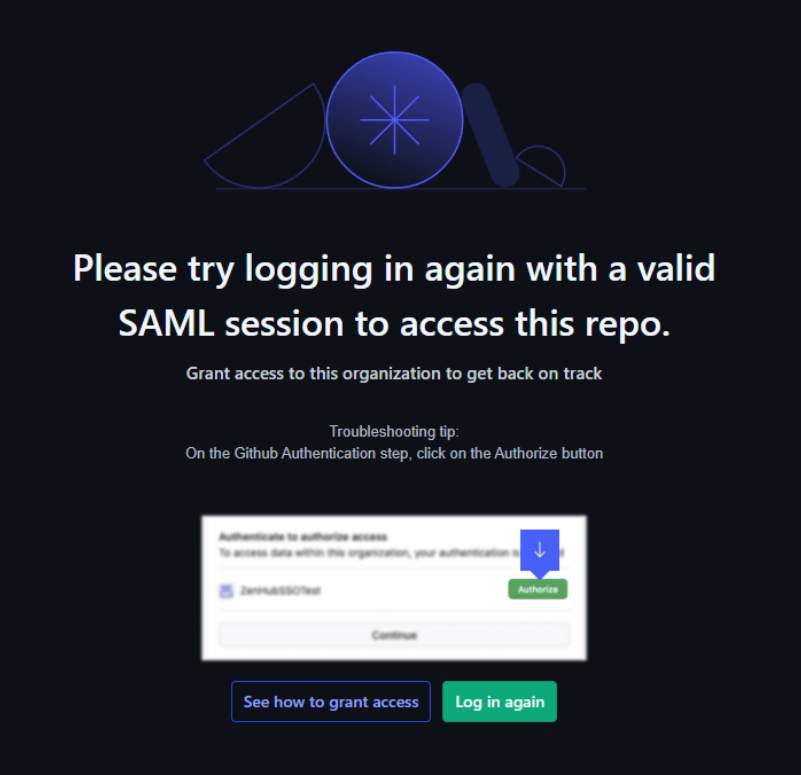
Periodically, the Zenhub app may show a screen saying "Please try logging in again with a valid SAML session to access this repo":
Follow these steps to restore access:
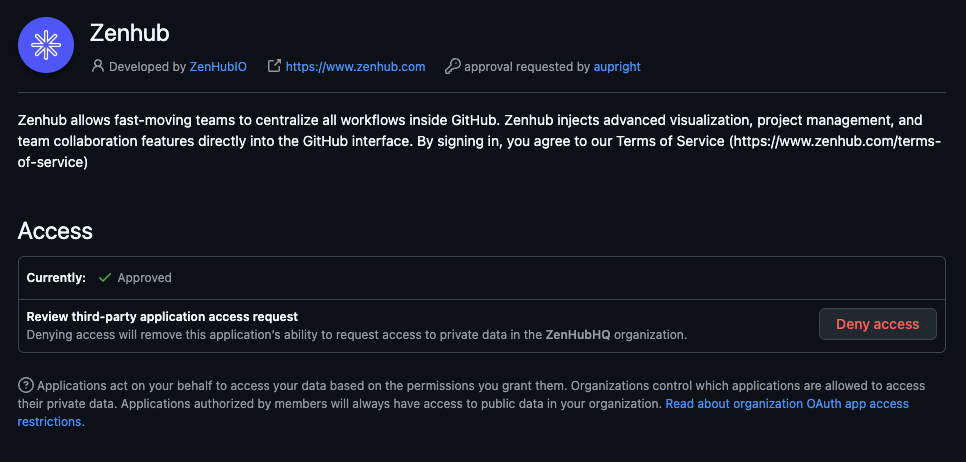
Check organization GitHub app permissions. Confirm with your GitHub organization administrator that Zenhub remains an authorized third-party application.
NOTE: You can skip this step if other team members currently have working Zenhub access, as this confirms organizational authorization is active.
Open
https://github.com/organizations/<your_organization>/settings/oauth_application_policy, find Zenhub in the list, and ensure it's set to Approved.Reset your personal GitHub app permissions. Open github.com/settings/applications, go to the Authorized OAuth Apps tab, find Zenhub in the list, click the ... menu, and select the red Revoke option.
Sign out of Zenhub. Click your profile menu in the bottom left corner and select Sign out, or visit app.zenhub.com/logout.
Sign back into Zenhub. Navigate to app.zenhub.com and click Continue with GitHub.
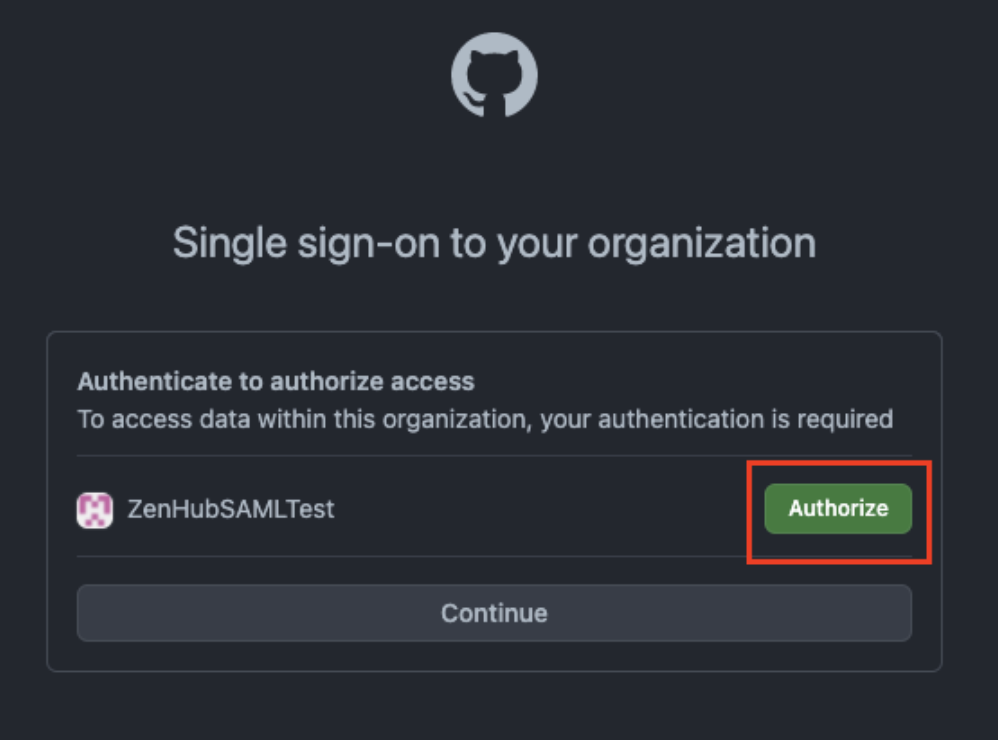
Authorize organization access. GitHub should display a Single sign-on to your organization screen showing your organization name with an Authorize button.
Click Authorize rather than Continue. The Authorize button triggers SAML re-authentication through your SSO provider.
Complete SSO provider login. Your organization's SAML identity provider login screen appears. Enter your SSO credentials and GitHub redirects you back to Zenhub automatically after successful authentication.
Verify workspace access. Confirm that your workspaces load correctly and repositories from the SAML-protected organization appear in your repository lists.

Why this happens
SAML SSO gives GitHub organization owners control over access to organizational resources. When your organization uses SAML authentication, you need to periodically re-authenticate your Zenhub access. SAML sessions can expire or require re-authorization, which temporarily blocks Zenhub access even though you can still access GitHub normally.
Recognizing SAML authentication issues
SAML re-authentication needs typically show up as specific access problems rather than clear error messages.
Repository list loading indefinitely when adding new repositories to a workspace suggests SAML authentication has expired but GitHub access remains active.
License request prompts despite having access can occur when you've joined teams with multiple GitHub organizations where each requires separate SAML authorization.
Selective repository access — some repositories from an organization load while others don't — suggests partial authorization rather than complete access denial.
Multi-device authentication
SAML authentication operates per-device rather than per-account. Each device needs separate SAML authorization through the Authorize button during login, and different browsers on the same computer maintain separate SAML sessions. If you can modify issues in some workspaces but not others, you likely clicked Continue instead of Authorize during login — sign out, log back in, and click Authorize for each organization requiring SAML access.
Troubleshooting persistent issues
If re-authenticating doesn't restore access, make sure you've clicked Authorize for every GitHub organization that uses SAML, since each one needs its own authorization. If problems persist, work through the general steps in Troubleshooting, then contact support with the exact error message and your organization name.
FAQ
Q: Why do I need to re-authenticate even though I'm already logged into GitHub?
A: SAML authentication for third-party applications like Zenhub operates independently from your GitHub session. GitHub access doesn't automatically maintain authorization for connected applications.
Q: Does clicking Continue instead of Authorize cause access problems?
A: Yes. Clicking Continue bypasses the SAML re-authentication step that Zenhub needs to access your organization's repositories. Always click Authorize for organizations using SAML SSO.
Q: How often will I need to re-authenticate with SAML?
A: Re-authentication frequency depends on your organization's SAML session duration policies. Some organizations require daily authentication; others allow sessions lasting weeks or months. Check with your IT team for your specific policy.
Q: Do I need to re-authorize on every device I use?
A: Yes. SAML authorization is device and browser-specific. You must click Authorize during login on each computer and browser where you access Zenhub.
Q: What should I do if re-authentication doesn't restore access after multiple attempts?
A: Contact your GitHub organization administrator to verify Zenhub remains an authorized application. If authorization is correct but problems persist, contact Zenhub support with specific error messages and your organization details.