
GitHub Issue Visibility
Show workspace members what's happening in a connected repository, even when they don't have a GitHub account or repository access.
What GitHub Issue Visibility does
GitHub Issue Visibility allows workspace members to see issues from specific repositories even without GitHub read access to those repositories. This gives you granular control over which repository issues are visible within each workspace.
When enabled, workspace members can view issue titles and descriptions but cannot comment or modify GitHub metadata like labels, assignees, or milestones. They retain full access to Zenhub-specific features including pipeline management (except closing issues), sprints, estimates, epics, and releases.
This controlled visibility enables cross-team collaboration without exposing code repositories or granting full GitHub access.
Enabling GitHub Issue Visibility
Navigate to your workspace settings by clicking Edit Workspace in the left sidebar. Locate the Workspace Issue Sources section, which displays all repositories connected to your current workspace. Click the three-dot menu next to any repository to access visibility settings.
Enable for all workspace members means any workspace member can see issues from this repository, regardless of GitHub access level.
Enable for GitHub users only means only workspace members with GitHub access to this repository can see its issues.
NOTE: You must have GitHub admin access to the repository to configure these settings. Without admin permissions, you'll only see options to set the repository as workspace default or remove it from the workspace.
Reading the icons in Workspace Issue Sources
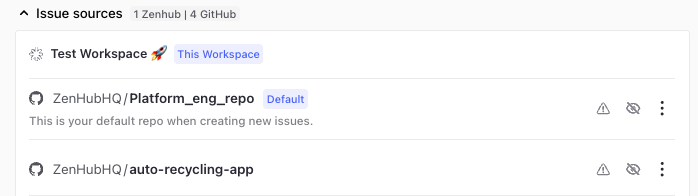
Each repository row in Workspace Issue Sources shows status icons at a glance:
A crossed-out eye icon means that repository is currently restricted — hovering over it shows "Visible only to those with GitHub repo access". That repository is set to Enable for GitHub users only, so workspace members without GitHub access to it won't see its issues.
A warning triangle icon appears when one or more workspace members lack write permissions on that repository. Hover over the icon to see which members are affected.
What visibility affects
When GitHub Issue Visibility is enabled, workspace members without GitHub access can view issue titles and descriptions, move issues between pipelines (but not close them), and update Zenhub metadata like sprint assignments, story points, epic relationships, and release associations.
They cannot comment on issues, modify GitHub metadata (labels, assignees, milestones), close issues, or access any repository code or files. Pull request titles and descriptions become visible, but code changes and file diffs remain inaccessible.
Disabling the feature returns access control to GitHub's standard permissions immediately — no restart or re-login required.
Managing multiple repositories
Configure GitHub Issue Visibility independently for each repository in your workspace. Different repositories can have different visibility settings based on security requirements and team collaboration needs. Use the repository list in Workspace Issue Sources to audit current settings across all connected repositories.
FAQ
Q: If I enable GitHub Issue Visibility, can non-technical team members accidentally access our code?
A: No. This feature only affects issue metadata visibility. Users without GitHub read permissions cannot view repository code, pull request diffs, or any files, even with Issue Visibility enabled.
Q: Why can't I enable GitHub Issue Visibility for a repository in my workspace?
A: You need GitHub admin access to the repository to configure visibility settings. Contact your repository administrator to request admin permissions or ask them to enable the feature.
Q: What happens to existing workspace members when I enable or disable this feature?
A: Changes take effect immediately. Enabling visibility grants limited issue access to workspace members right away; disabling it removes access for users without GitHub read permissions immediately.
Q: Can I enable visibility for some repositories but not others in the same workspace?
A: Yes. GitHub Issue Visibility is configured per repository. You can enable it for repositories requiring cross-team visibility while keeping others restricted to users with GitHub access.
Q: Can limited-access users close issues by moving them to the Closed pipeline?
A: No. Closing issues requires GitHub write permissions even when GitHub Issue Visibility is enabled. Limited-access users can move issues to other pipelines but cannot close them.
Q: What does the warning triangle next to a repository mean?
A: It flags that one or more workspace members lack write permissions on that repository. Hover over the icon to see the specific members affected.