
Workspace Access
Control who can enter a workspace, how private it is, and whether members can configure, collaborate, or only view.
Workspaces are where planning and delivery happen day to day. Most teams use them in one of two ways:
Team workspaces — shared spaces for the people doing the work. These are often shared (open to the organization) with Editors and Admins collaborating freely.
Stakeholder or overview workspaces — focused views for leadership, clients, or consultants. These are often private, with a small set of members and more Viewers than Editors.
Organization roles decide who belongs to your Zenhub account. Workspace roles decide what they can do inside this workspace. See Organization Access and Roles & Permissions Overview for the broader picture.
Finding workspace settings
Open the workspace and go to Edit Workspace (or Workspace settings) in the sidebar. From there you can change the name, privacy, connected repositories, and members.
Shared vs private workspaces
Shared — people in your Zenhub organization can find and join the workspace (organization Guests are an exception; see below).
Private — only people you add as members can open the workspace. Organization membership alone is not enough.
TIP: Team delivery boards are often shared. Stakeholder or client overviews are often private so only the right people can see them.
Workspace roles
Workspace admin — Full control of that workspace: settings, privacy, repositories, pipelines, sprints, labels, imports, deleting the workspace, and managing all members and roles.
Workspace editor — Full collaboration on the board (move issues, sprint work, roadmaps, and other workspace edits). Can invite and remove members and change Editor/Viewer roles, but cannot assign or change workspace admins, or delete the workspace.
Workspace viewer — Mostly view-only in the workspace: can view boards, issues in context, and reports, but cannot change settings, manage members, move issues, or change most metadata. Organization Guests who are Viewers have one exception: they can create Zenhub Issues and edit the title and description of Zenhub Issues they created.
What each role can do
Action | Admin | Editor | Viewer |
|---|---|---|---|
Workspace settings & configuration | Yes | No | No |
Delete workspace | Yes | No | No |
Invite / remove members | Yes | Yes (not admins) | No |
Change member roles | Yes | Yes (not to/from admin) | No |
Collaborate on the board | Yes | Yes | View only* |
*Organization Guests who are Viewers can create Zenhub Issues and edit the title and description of Zenhub Issues they created. They still can’t move issues, change other metadata, or manage the board.
Organization Guests must be Viewers
If someone’s organization role is Guest, their workspace role is limited to Viewer:
You cannot promote a Guest to Editor or Admin in a workspace
Inviting or re-adding a Guest always places them as Viewer
Changing an existing Member to Guest lowers any Admin/Editor workspace roles they already have to Viewer
Guests remain workspace Viewers — they can’t move issues, change metadata, or manage the board — except they can create Zenhub Issues and edit the title and description of Zenhub Issues they created. That keeps Guest reserved for stakeholders and consultants who should not fully collaborate on the board. People who need to move work or manage the board should be organization Members (or Admins) with the matching workspace role. Learn more in Organization Access.
Guests and shared workspaces
Organization Guests do not automatically get into shared workspaces just because they belong to the org. Add them as members of each workspace they should see. Private workspaces already require an explicit invite for everyone except organization admins.
Adding and managing members
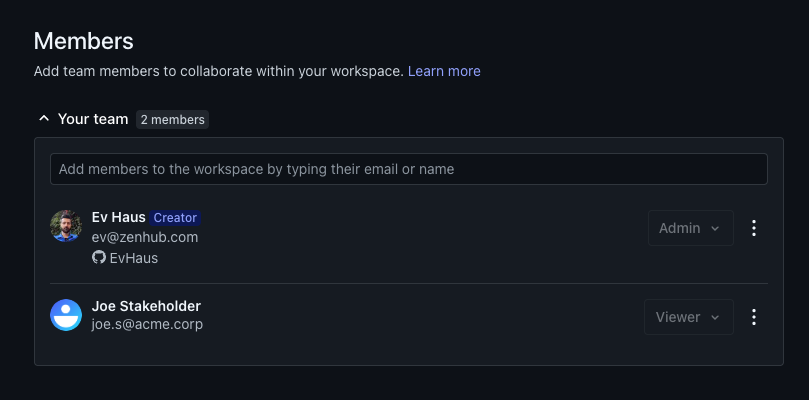
In workspace settings, use the Members section to add people by name or email and set their workspace role. Use the menu next to each member to change their role or remove access when the team changes.
Defaults
Creating a workspace makes you its Admin.
People added to a workspace are typically Editors by default — except organization Guests, who are always Viewers.
Workspaces without a workspace admin
If a workspace has no workspace admin, it is treated as an open workspace: every member can perform configuration actions until someone becomes an admin. Once at least one workspace admin exists, only workspace admins and organization admins can change settings.
GitHub permissions still matter
Workspace roles control Zenhub behavior in that workspace. For issues on connected GitHub repositories, people still need the right GitHub access. See GitHub Permissions — including whether a Guest or Viewer can see a GitHub-sourced issue card without a GitHub seat.
FAQ
Q: Should my team workspace be shared or private?
A: Shared is common for internal team delivery so org members can join easily. Use private when only a defined set of people should see the board — typical for stakeholder or client-facing overviews.
Q: Can a workspace Editor make someone an Admin?
A: No. Only workspace admins and organization admins can assign or change the workspace admin role.
Q: Why can’t I set a Guest to Editor?
A: Organization Guests are limited to the Viewer workspace role by design. They can still create Zenhub Issues and edit the title and description of ones they created, but they can’t move issues, change other metadata, or manage the board. Change their organization role to Member if they need fuller collaboration, then set the workspace role you want.
Q: Why can a Guest not see a shared workspace everyone else can join?
A: Guests only see workspaces they are explicitly added to. Add them as a Viewer on that workspace.
Q: Why can’t someone move issues even though they’re in the workspace?
A: They may be a Viewer in Zenhub, or they may lack write access on the underlying GitHub repository. Check both workspace role and GitHub permissions.
Q: Do I need to buy a Guest a GitHub seat so they can see GitHub issue cards?
A: No. Turn on GitHub Issue Visibility for the relevant repositories instead — see GitHub Permissions. It shows GitHub-sourced issue titles and descriptions to workspace members who aren’t connected to GitHub, so a Guest can see cards without consuming a GitHub license.