
Customizing Your View
Adjust the Work Tracker and Timeline to show exactly what your team needs, from condensed cards to timeline color schemes.
Zenhub gives you fine-grained control over how information is displayed in the Work Tracker and Timeline. These settings are personal — changes you make only affect your own account and won't alter what your teammates see.
Work Tracker View Options
Click the View options button in the top-right corner of the Work Tracker (next to the filter bar) to open the panel. The following toggles let you control what appears on the board.
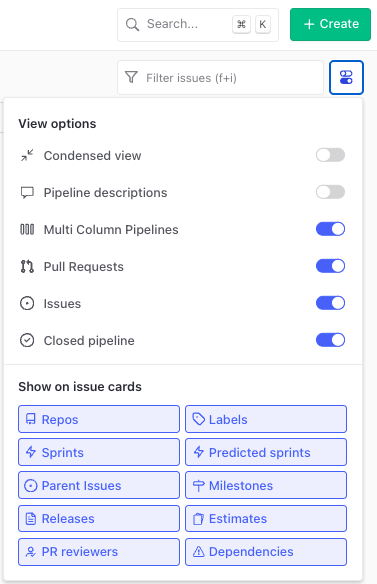
Condensed view reduces each issue card to just the title, estimate, and label colors. This is useful when you're scanning a large backlog or sprint and don't need the full metadata visible at a glance.
Pipeline descriptions lets you display a text description at the top of each pipeline column. Toggle it off to hide those descriptions and reclaim vertical space on the board.
Multi Column Pipelines arranges issues side by side within a pipeline, reading left to right and top to bottom. When disabled, each card expands to fill the full width of the pipeline column instead.
Pull Requests shows or hides pull requests on the Work Tracker. Disable it if you want to focus on issues only.
Issues shows or hides issues on the Work Tracker. This is useful if you want to see pull requests exclusively. You cannot disable both Issues and Pull Requests at the same time — a padlock will appear on the second toggle to prevent this.
Closed pipeline shows or hides the Closed column, which holds issues that have been closed in GitHub.
NOTE: All view options are per-user. Changes you make apply to your account only and do not affect your teammates' views.
Show on Issue Cards
Below the toggles, the Show on issue cards section lets you choose which metadata is visible on each card. You can enable or disable any combination of the following: Repos, Labels, Sprints, Predicted sprints, Parent Issues, Milestones, Releases, Estimates, PR reviewers, and Dependencies.
Turning off fields you rarely use keeps cards clean and easier to scan, particularly when Multi Column Pipelines is enabled and card width is reduced.
Timeline View Options
The Timeline has its own View options panel, accessible from the button in the top-right of the Timeline view. You can toggle Key dates, Dependencies, Sprints, and Predicted end dates on or off depending on what level of detail you need.
The panel also lets you change how work completion is displayed using the Show work completion as dropdown.
Zenhub theme (default) displays timeline items in Zenhub's standard color palette.
Project status colors timeline items based on the current completion state of their children, giving a quick visual read on progress across your hierarchy.
The currently active color scheme is shown in the dropdown at the bottom of the panel.
Browser Zoom
Standard browser zoom (Cmd/Ctrl + and -) works reliably across both the Zenhub web app and browser extension. Zooming out is a practical way to fit more pipelines or issues on screen without adjusting any settings.
TIP: Combining browser zoom with Multi Column Pipelines and Condensed view is an effective way to get a high-level overview of a large sprint or backlog without leaving the Work Tracker.
FAQ
Q: If I enable Condensed view, what information is hidden?
A: Condensed view hides most metadata on the card, keeping only the issue title, estimate, and label colors visible. All other fields — assignees, repos, dependencies, and so on — are hidden until you open the issue or disable Condensed view.
Q: Can I save my view settings as a default for my team?
A: No. View options are personal and apply to your account only. There is no workspace-wide default for these settings, so each team member configures their own preferences.
Q: Why can't I disable both Issues and Pull Requests at the same time?
A: The Work Tracker requires at least one content type to be visible. When only one remains enabled, a padlock appears on that toggle to prevent you from hiding everything.
Q: What is the difference between Zenhub theme and Project status in the Timeline?
A: Zenhub theme uses a fixed color palette for all timeline items. Project status colors items dynamically based on how complete their child issues are, making it easier to spot work that is on track versus falling behind.
Q: Do view options apply to both the web app and the browser extension?
A: Yes. Your view preferences follow your account across both interfaces, so adjustments made in the web app will also be reflected when you access the Work Tracker through the browser extension.