
Issue Priorities
Zenhub has two issue priorities — High and Normal — and High Priority issues are always pinned to the top of each pipeline.
Issue priority in Zenhub is deliberately simple. Every issue is either High or Normal. There are no other priority levels (no Low, Medium, Critical, or custom scales). This keeps the board readable and makes the most urgent work impossible to miss.
The two priority levels
Priority | What it means |
|---|---|
High | Urgent work that must stay visible. These issues are pinned to the top of their pipeline with a pin icon and red highlight. |
Normal | Everything else. Normal-priority issues always sit below High Priority issues in the same pipeline. |
Priority is workspace-specific. The same GitHub issue can be High Priority in one workspace and Normal in another, so different teams can prioritize shared work differently.
How High Priority issues behave
High Priority is treated specially on purpose — not as a soft label, but as a hard layout rule:
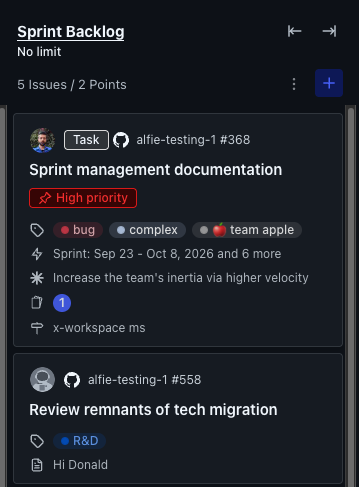
Always pinned to the top of the pipeline column
Red "High Priority" label, plus a pin icon on the issue card
Normal issues can never appear above High Priority issues in the same pipeline
That last rule is what drives the drag-and-drop behavior described below.
Setting and removing High Priority
Set High Priority
Open the issue card menu (three dots)
Select "Pin to top and set as high priority"
The issue moves to the top of its column with a pin icon and red highlight.
Remove High Priority
Use the same card menu and choose the option to remove High Priority, or
Drag the issue below the High Priority section (you may be asked to confirm)
You can also set priority for multiple issues at once with bulk actions on the Work Tracker.
Drag-and-drop behavior
Because High Priority issues must always stay above Normal ones, reordering by drag-and-drop can change priority automatically. This is expected — not a board glitch.
Dropping an issue above a High Priority issue
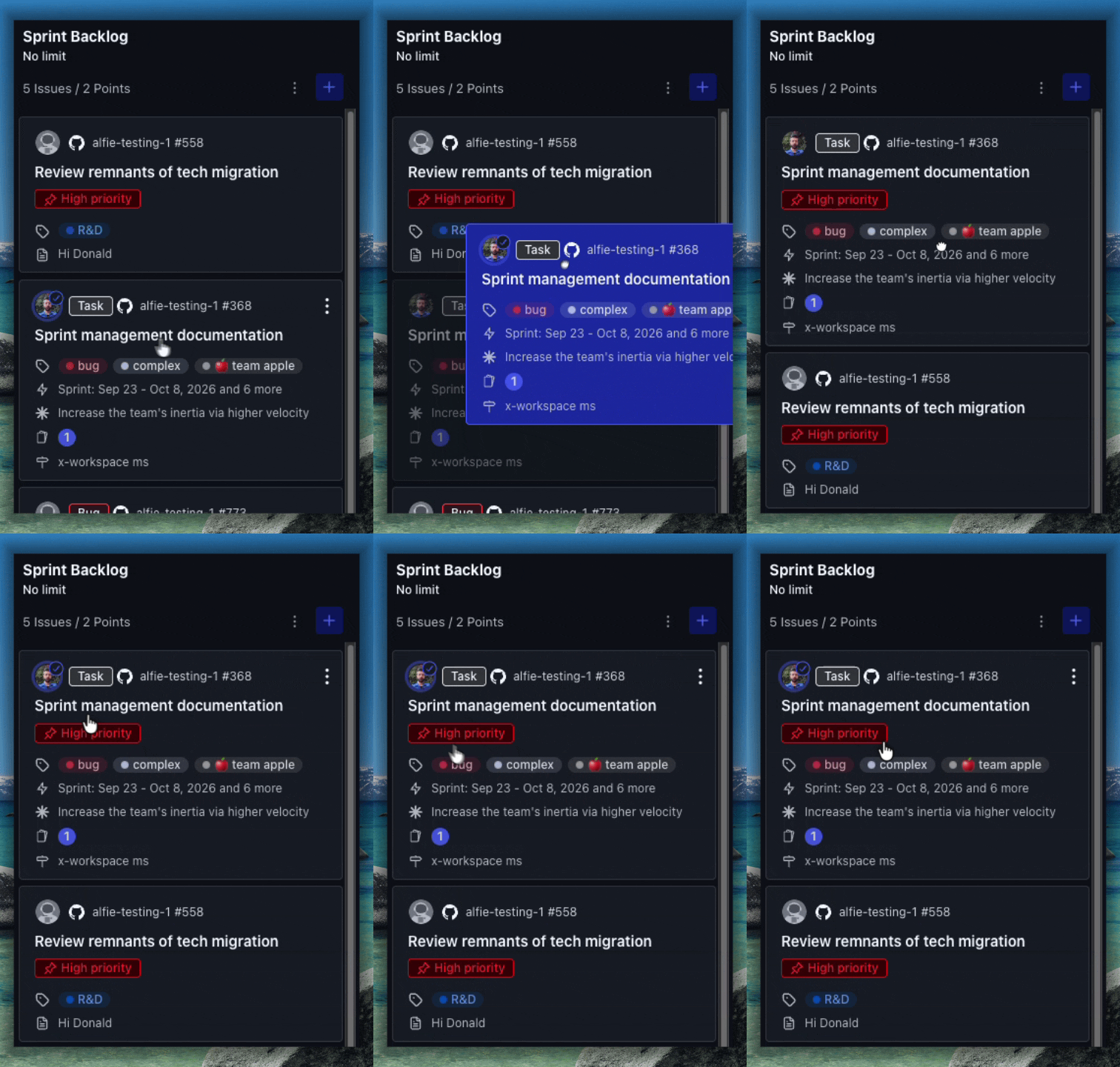
If you drag a Normal issue (or any issue) into a position above another High Priority issue, Zenhub automatically converts it to High Priority. Regular (Normal) issues can never sit above High Priority issues, so the board upgrades the dropped issue to keep the rule intact.
Dropping a High Priority issue below a Normal issue
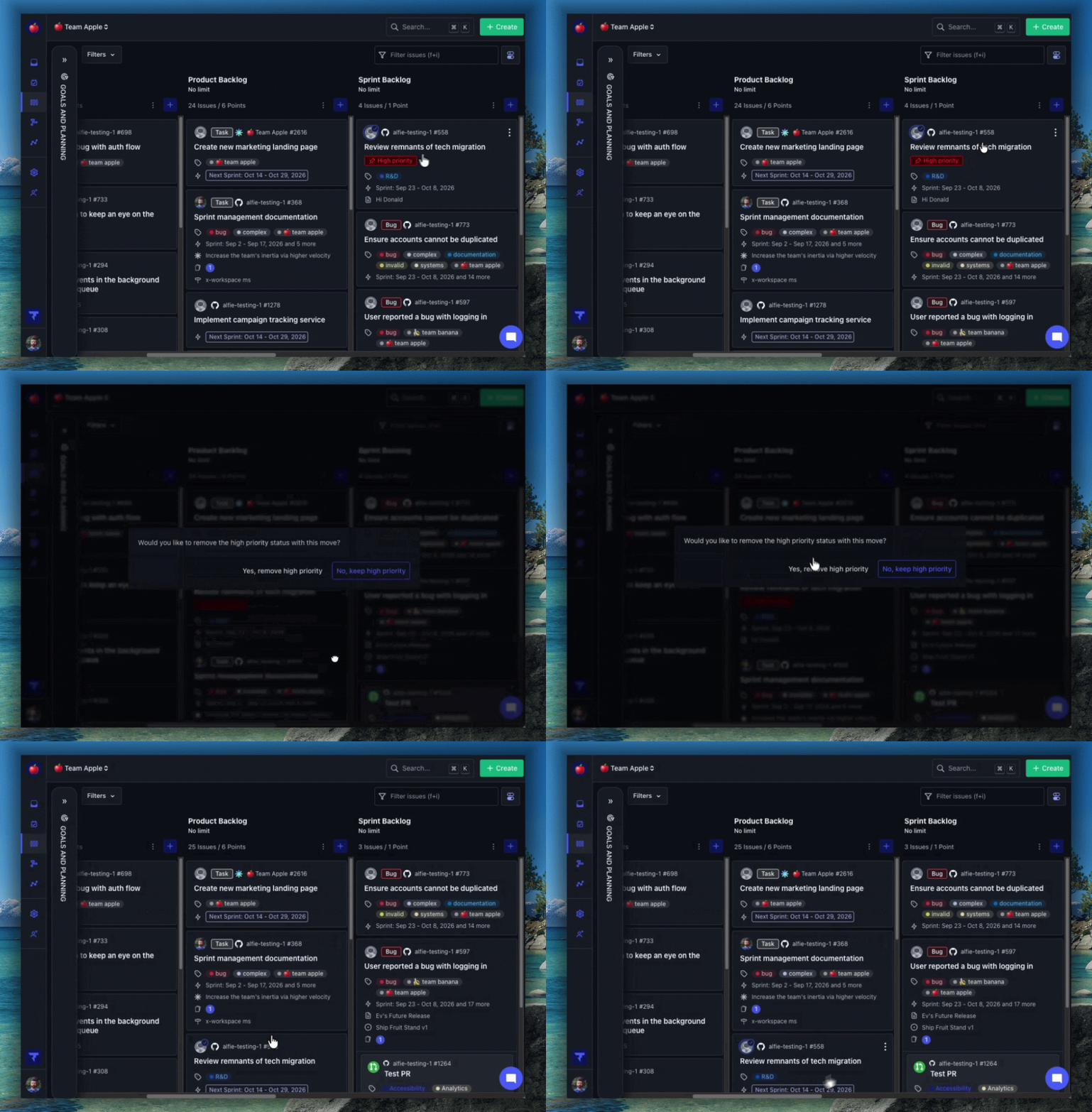
If you drag a High Priority issue below a Normal-priority issue, Zenhub shows a confirmation modal asking you to confirm removing High Priority status. Confirming demotes the issue to Normal so it can sit in that position. Canceling leaves it High Priority.
NOTE: If issues seem to "jump" or change priority after you reorder them, check whether you dropped them into (or out of) the High Priority section at the top of the column. That position change is what triggers the priority update.
Tips to avoid unintended priority changes
To keep an issue Normal, drop it below the High Priority section — not above another High Priority card.
To reorder High Priority issues among themselves, drag within the High Priority section only.
To change pipeline without affecting priority, use the pipeline selector on the issue page instead of drag-and-drop between columns when High Priority cards sit at the top of the destination.
This automatic High Priority behavior cannot be turned off. It exists so urgent work always stays pinned and visible.
FAQ
Q: Can I turn off automatic High Priority pinning?
A: No. Automatic promotion when you drop above a High Priority issue is built into the board and isn't configurable. Work around it by dropping below High Priority items, or change pipeline from the issue page instead of drag-and-drop.
Q: Can I customize priority levels (for example Low / Medium / Critical)?
A: No. Zenhub only supports High and Normal. For finer-grained categorization, use labels (for example P1, urgent, or severity:critical) alongside High Priority for the work that must stay pinned.